How I Built an Open-Source Stream Production System
Apr 01, 2026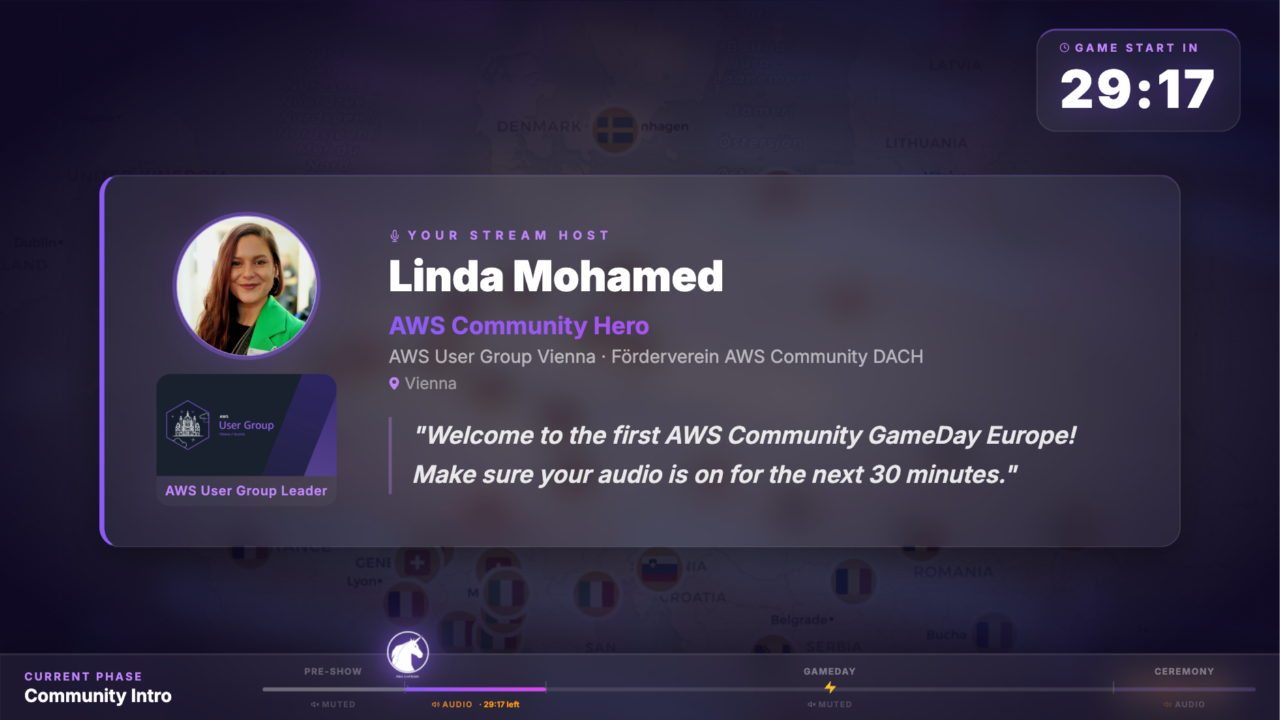
How I Built 4h Live Stream Visuals for 53 AWS User Groups Across 23 Countries With Two GitHub Repos
On March 17, 2026, over 57 AWS User Groups from 23 countries competed simultaneously in the first-ever AWS Community GameDay Europe - a live, competitive cloud challenge organized entirely by community volunteers, with support from AWS Developer Advocates and Community Managers.
Remotion Player Preview of AWS Community GameDay Europe:
https://linda-mhmd.github.io/community-gameday-europe-stream-templates/?segment=mainevent

How to switch between the segments: Press Esc to hide • ?autoplay=true for production - use the controls to select the segment you want to view or add the parameter ?segment=<name> (e.g. ?segment=preshow) to the URL to open a specific segment directly, and optionally add &autoplay=true for automatic playback.
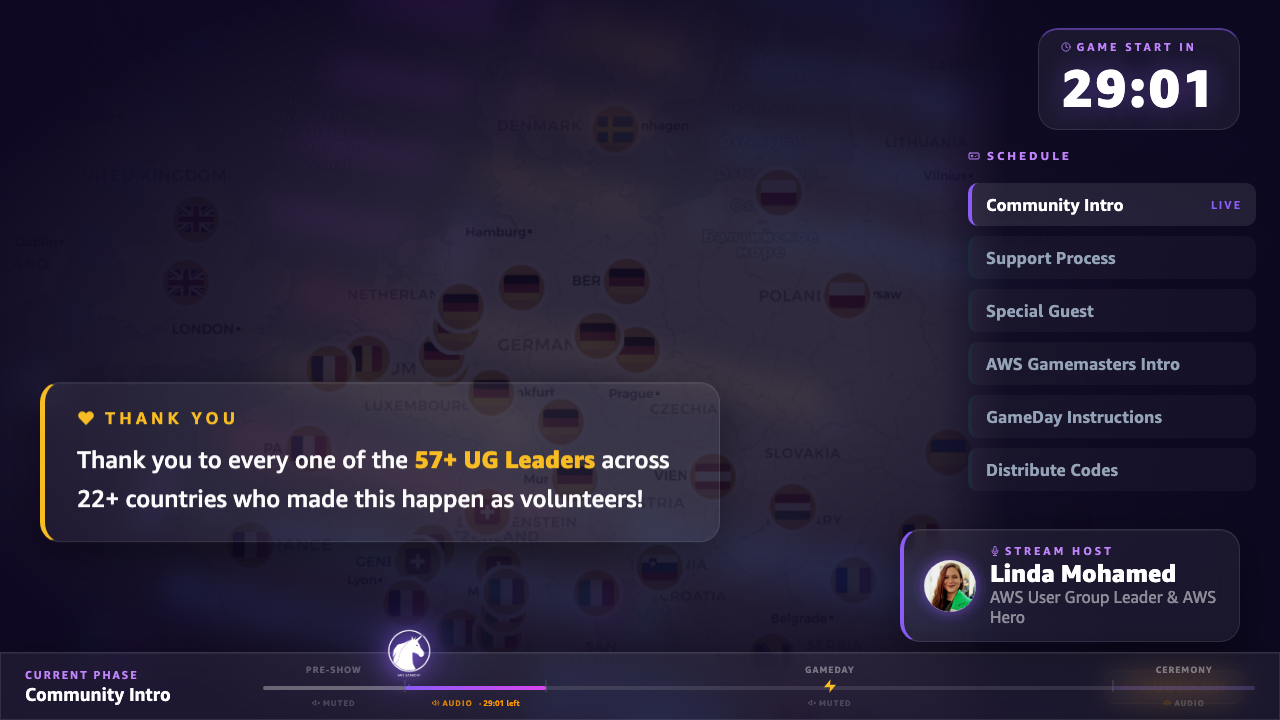
The stream served as the connective tissue: a shared visual experience that made 57 separate rooms in 23 countries feel like one event. Every visual element - countdowns, overlays, insert graphics, animated winner reveals - was built from scratch using Remotion, React, and TypeScript.
And then I open-sourced all of it.
Two repos, a fork, three clicks, and any community event can use it.
This post walks through the architecture, the code, and how you can fork it to run your own community event stream. I'll cover the two-repo design, the Remotion composition system, the GitHub Actions pipeline that deploys everything with a single push, and the insert system that kept the broadcast alive during two hours of gameplay. I'll also show how we tested the template across Americas and Asia-Pacific configurations to prove it works beyond Europe.
The Event: What Is AWS Community GameDay Europe?
AWS Community GameDay Europe is a hands-on, competitive cloud challenge where teams solve real-world AWS scenarios called "quests" - debugging broken architectures, deploying resilient systems, racing against the clock. Think capture-the-flag, but for cloud engineering.
What makes this edition different is scale and origin. It wasn't organized by AWS corporate. It was organized by community volunteers - User Group Leaders, Community Builders, AWS Heroes, Cloud Club Captains - across borders and timezones. The organizing team of 8 community leaders and 4 AWS supporters coordinated a 3.5-hour live event that participants joined from their local meetup locations across the continent.
| 57 | Participating AWS User Groups |
| 23 | Countries across Europe |
| 4 | Timezones spanned |
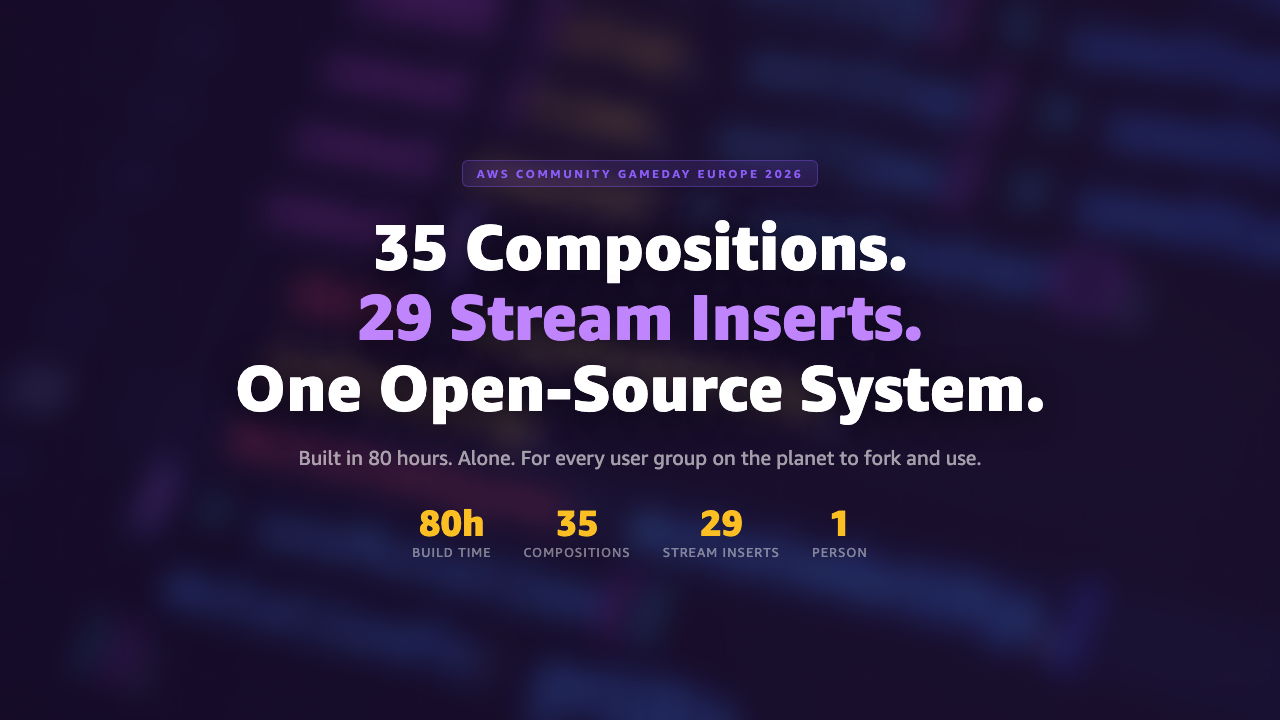
| 35 | Remotion compositions (React components that are a video) |
| 29 | Live insert overlays |
| 2 | Repositories - zero streaming studio required |
Scale and Structure
The numbers: 53+ European user groups, 20+ countries, 4 timezones, one 4-hour broadcast window starting at 17:30 CET. The stream runs in phases - pre-show loop, welcome and instructions, two hours of muted gameplay, then a live closing ceremony with animated winner reveals.
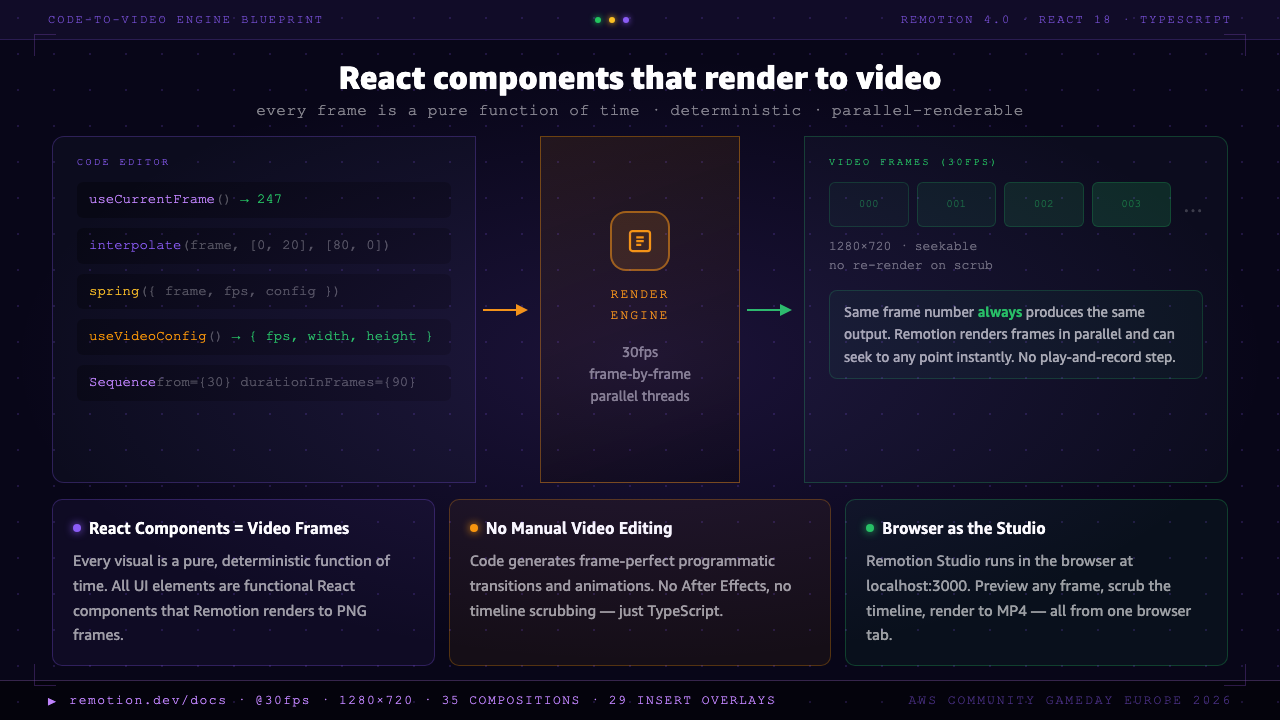
Every composition was built in Remotion - a React framework where you write components that render to video frames. At 30 fps over 4 hours, that's around 450,000 frames total across all compositions. I did not want to build a custom video player. I wanted something I could open in a browser during the stream and click "play."
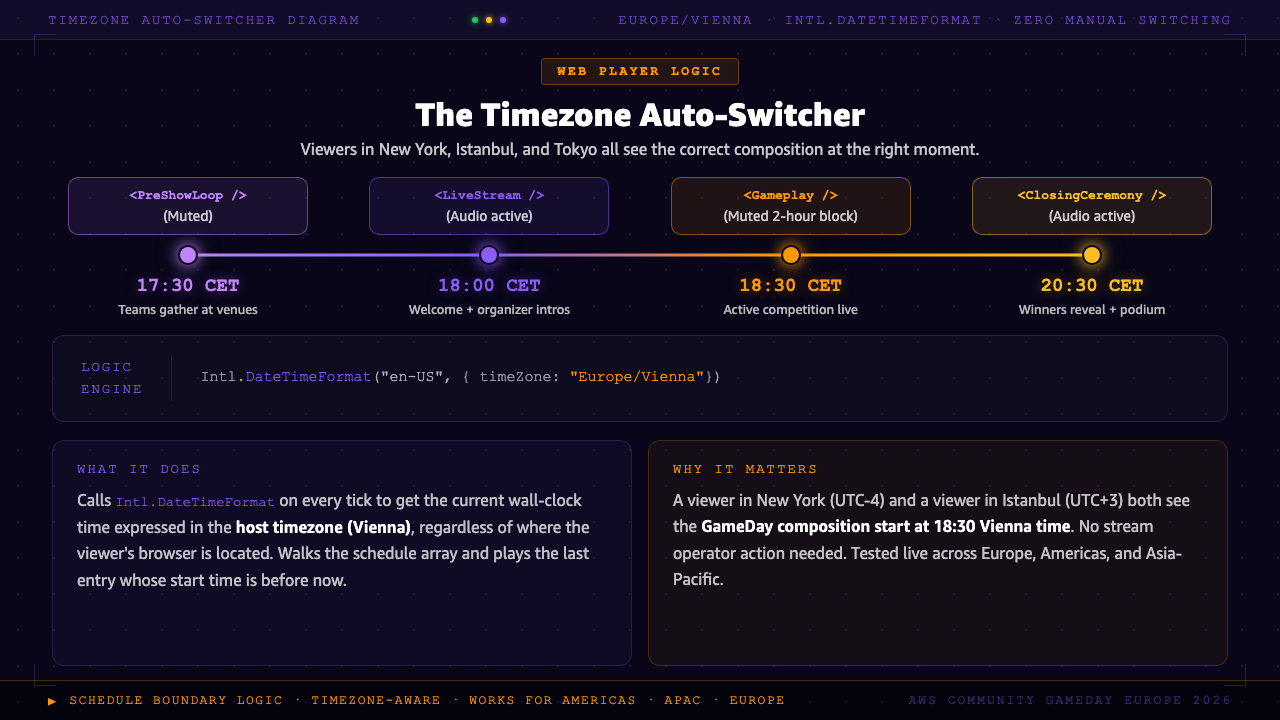
The web player is a Vite app deployed to GitHub Pages. It knows what composition to show based on the current time in the host timezone. No manual switching needed for the automatic transitions - preshow at 17:30, main event at 18:00, gameplay at 18:30, closing at 20:30. The inserts sit on top, triggered manually when something interesting happens on the leaderboard.
The Two-Repo Architecture
The stream infrastructure is split into two public GitHub repositories. This is the most important architectural decision in the project, and it's worth explaining why.
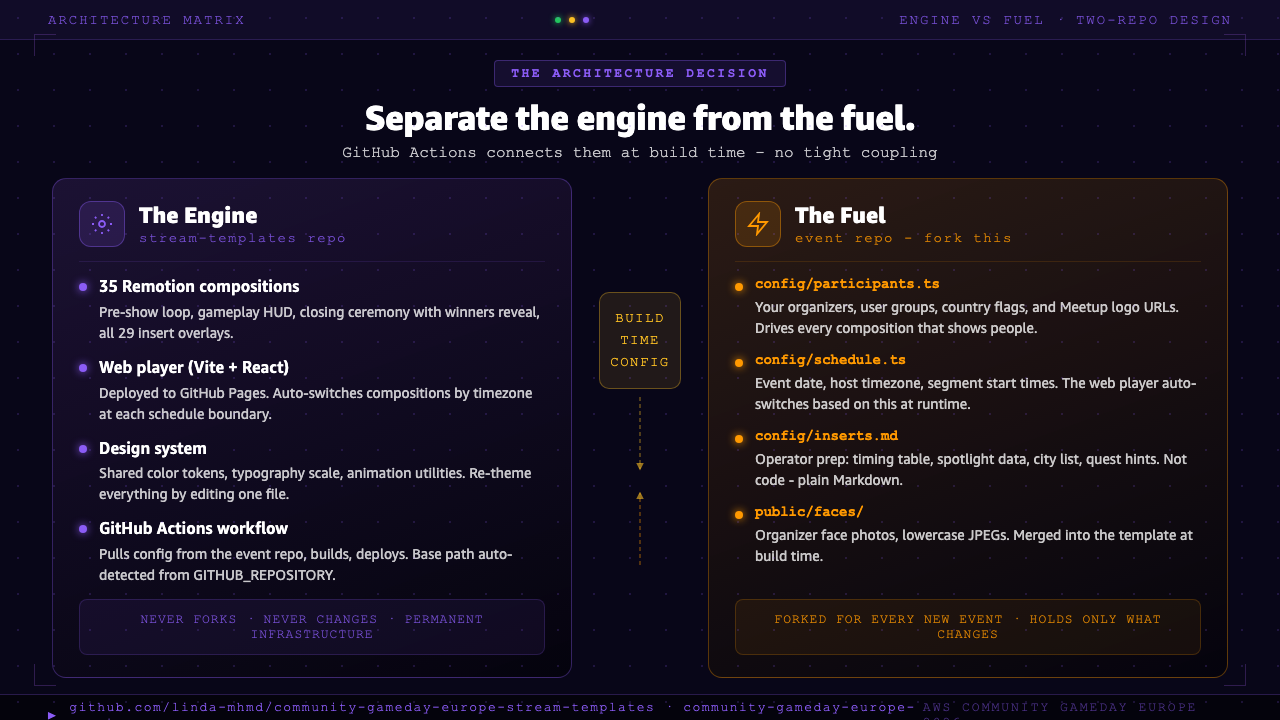
The problem: Event data (who's participating, what's the schedule, who are the organizers) changes every edition. Stream code (compositions, design system, animations, web player) doesn't. If both live in the same repo, every fork for a new event drags along the previous edition's data, and any template improvements require cherry-picking across forks.
The solution: Separate the engine from the fuel.
community-gameday-europe-stream-templates   ← THE ENGINE
│  All composition code, design system, web player
│  Does NOT change between editions
│  Not deployed directly — used as a build input
│
└——▸ community-gameday-europe-event         ← THE FUEL
     │  config/participants.ts  ← organizers, UGs, logos
     │  config/schedule.ts      ← segment timing
     │  public/faces/           ← organizer face photos
     │
     └——▸ GitHub Actions (on push to main)
          1. Checks out the template repo
          2. Overwrites config with event-specific data
          3. Builds the web player (Vite + Remotion)
          4. Deploys to GitHub Pages
Template repo (engine): github.com/linda-mhmd/community-gameday-europe-stream-templates
Event repo (fuel): github.com/linda-mhmd/community-gameday-europe-event
One-time setup (required by GitHub security): Enable Actions in the Actions tab + enable GitHub Pages in Settings → Pages → Source → GitHub Actions. After that, every push to main deploys automatically in ~2 minutes.
Why split? If both lived in one repo, forking would carry every previous edition's participant data and schedule. You'd have to hunt through the code to figure out what to replace. The split means the event repo is tiny - config/, public/faces/, and a workflow file. Everything else lives in the template and is pulled fresh at build time.
| stream-templates / (template repo) | 35 compositions, web player, design system, docs - never forks |
| event / config/participants.ts | 8 organizers, 4 AWS supporters, 57 user groups with logos - replace with your event's data |
| event / config/schedule.ts | Segment start times for the web player auto-switcher |
| event / config/inserts.md | Operator prep: which inserts to fire, when, with what data filled in |
The Tech Stack
| Technology | Role |
|---|---|
| Remotion 4.0 | Frame-by-frame video composition engine - React components that render to video |
| React 18 | Component framework for all visual elements |
| TypeScript | Type-safe configuration with compile-time validation of user group names |
| Zod | Runtime schema validation for insert props in Remotion Studio |
| Vite | Web player build tool |
| GitHub Actions | CI/CD — automated build and deploy on push |
| GitHub Pages | Free CDN-backed hosting - zero-config |
Output: 1280×720 @ 30fps - optimized for web streaming and screen sharing.
Remotion is the key technology choice. It lets you build videos as React components - frame by frame, with full access to the React ecosystem. Every animation is an interpolate() call on the current frame number. Every timed transition is a spring() with configurable physics. No After Effects, no video editor - just TypeScript.
Running Your Own Event: The Exact Steps
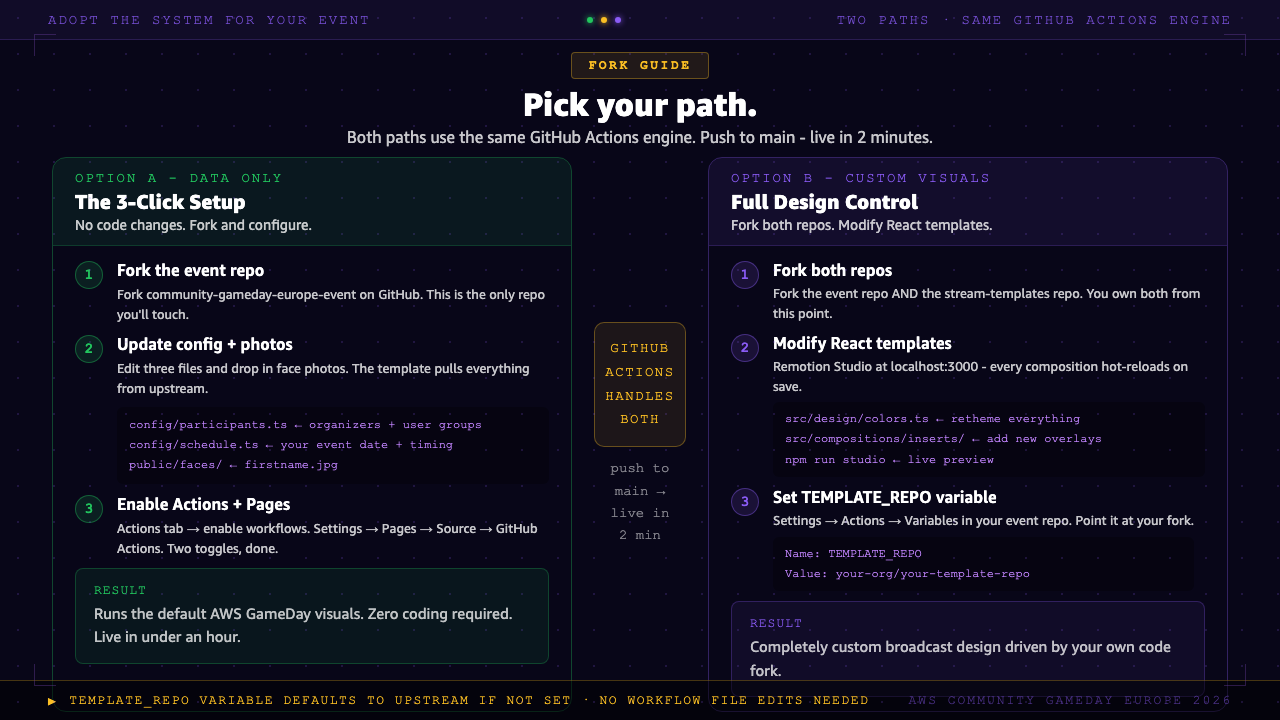
Option A - Use the template as-is, change only event data
You don't need to write a single line of code to run your event on this system. Fork the event repo, update the config files, and get through three one-time setup steps. After that, every push to main deploys automatically.
Step 1: Fork
Fork community-gameday-europe-event on GitHub.
Step 2: Enable GitHub Actions
GitHub disables workflows on all forks by default - this is a security policy. Go to the Actions tab of your fork and click:
This click is unavoidable. GitHub cannot enable Actions programmatically on forks.
Step 3: Enable GitHub Pages
Go to Settings → Pages and change the source:
GitHub does not allow workflows to enable Pages automatically on forked repos. This click is also unavoidable. The workflow checks whether Pages is configured and skips the deploy step with a clear message if it isn't - so if you forget this, it tells you exactly what to do.
Step 4: Trigger your first deploy
If you've already pushed changes, just re-run the workflow - it only skipped the deploy step, it ran the build successfully. Either use the GitHub UI (Actions → Deploy to GitHub Pages → Re-run jobs) or:
gh workflow run deploy.yml --repo your-org/your-repo-nameYour page will be live at https://<your-org>.github.io/<your-repo-name>/ within ~2 minutes.
Option B - Modify the visual system itself
If you want to change compositions, add new insert types, or rework the design, fork both repos. Then point your event repo at your template fork using a repository variable:
In your event repo fork, go to Settings → Secrets and variables → Actions → Variables tab and create:
| Name | TEMPLATE_REPO |
| Value | your-org/your-template-repo-name |
The workflow uses ${{ vars.TEMPLATE_REPO || 'linda-mhmd/community-gameday-europe-stream-templates' }} - so it falls back to the upstream template if the variable is not set. No workflow file edits needed.
Note on event.ts: The event name, host timezone, and timing offsets live in config/event.ts inside the template repo - not the event repo. If you only fork the event repo (Option A), these values come from the upstream template. They will say "AWS Community GameDay Europe 2026." If you need different event branding, use Option B and edit config/event.ts in your template fork.
Inside the Config Files
config/participants.ts - the data layer
This is the file that drives most of the visual content. It defines the organizer intros shown during the main event, the AWS supporter logos, and the complete list of user groups that appear on the gameplay HUD and in the closing animation.
// config/participants.ts (event repo)
export const ORGANIZERS: Organizer[] = [
  {
    name: "Linda",
    fullName: "Linda Mohamed",
    role: "Stream Host & Organizer",
    city: "Vienna, Austria",
    bio: "AWS Hero, cloud architect, and builder of overly automated things.",
    face: "linda.jpg",  // must match a file in public/faces/
  },
  // ... 7 more organizers
];

export const USER_GROUPS: UserGroup[] = [
  { name: "AWS UG Vienna",   flag: "🇦🇹", country: "Austria" },
  { name: "AWS UG Berlin",   flag: "🇩🇪", country: "Germany" },
  { name: "AWS UG Istanbul", flag: "🇹🇷", country: "Turkey" },
  // ... 54 more groups
];
The face field must match a file in public/faces/ in the event repo - all lowercase, first name only. The build merges these into stream/public/assets/faces/ in the template. The user group logos come from config/logos.ts in the template repo (Notion CDN URLs for the 2026 edition).
config/schedule.ts - what drives the auto-switcher
This file gets copied from the event repo into stream/web-player/src/schedule.ts at build time. The web player imports it directly and uses it to decide which composition to display.
// config/schedule.ts (event repo)
export const EVENT_DATE = "2026-03-26";
export const TIMEZONE = "Europe/Vienna";

export const SCHEDULE = [
  { id: "preshow",   start: "17:30", label: "Pre-Show Loop"  },
  { id: "mainevent", start: "18:00", label: "Live Stream"    },
  { id: "gameplay",  start: "18:30", label: "GameDay"        },
  { id: "closing",   start: "20:30", label: "Closing Ceremony" },
  { id: "end",       start: "21:00", label: "Stream Ended"   },
] as const;
At runtime, the web player calls Intl.DateTimeFormat with the Europe/Vienna timezone to get the current time regardless of where the viewer's browser is located. It walks the schedule array and finds the last entry whose start time is before now. That composition plays. When the clock passes 18:30, the player switches to the gameplay composition automatically - no stream operator action needed.
Remotion: 35 Compositions in One Project
What is Remotion?
A React framework for creating video programmatically. You write React components. Remotion renders them to video by calling each frame as a pure function of the frame number - useCurrentFrame() gives you the current frame, interpolate() maps frame ranges to values, spring() gives you physics-based animations. Remotion Studio is a browser-based dev environment where you can preview and render any composition. Docs: remotion.dev/docs
The template repo has 35 compositions organized by stream phase:
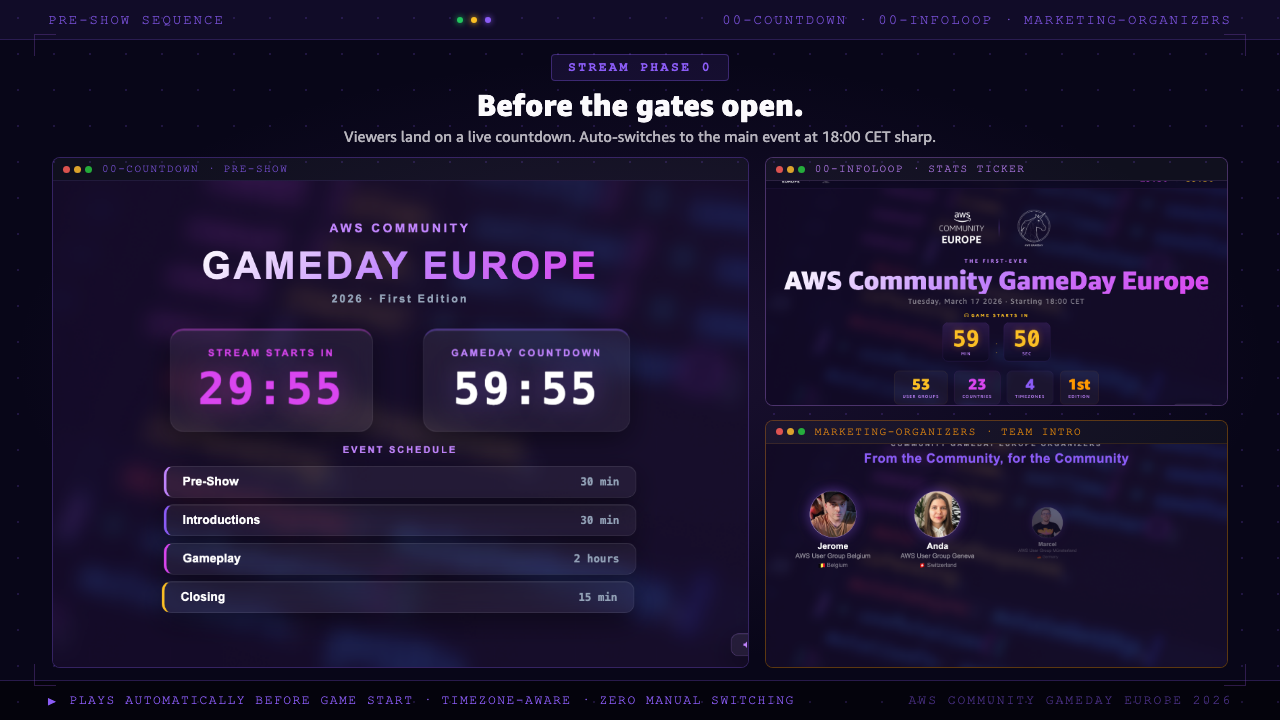
| 00-preshow/ | Countdown timer + rotating info loop while teams gather (muted) |
| 01-main-event/ | Welcome, organizer intros, AWS supporter logos, GameDay instructions (audio) |
| 02-gameplay/ | 2-hour ambient overlay - leaderboard-style HUD, subtle motion, no audio |
| 03-closing/ | Pre-rendered closing + live winners reveal with animated bar chart and podium (audio) |
| marketing/ | Social media clips for pre-event promotion |
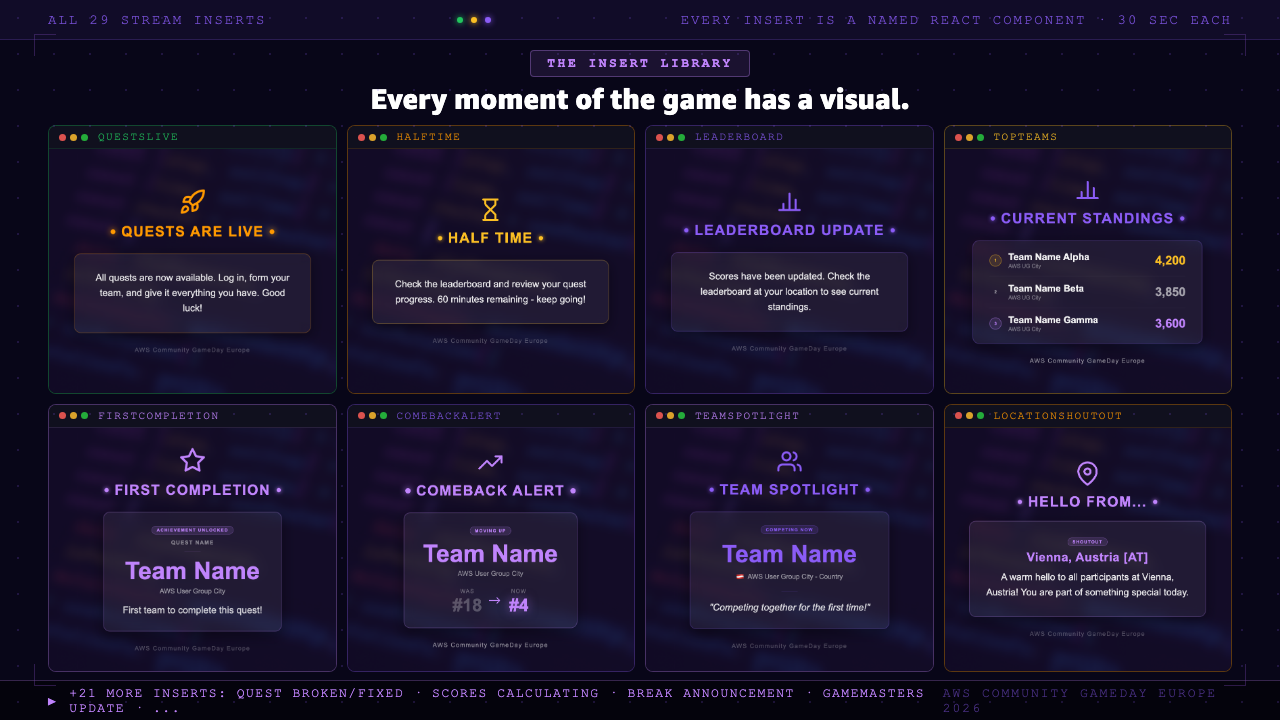
| inserts/ | 29 full-screen 30-second overlays - the live insert system |
All compositions are registered in src/Root.tsx. Remotion Studio shows them all in the sidebar. You can preview any frame of any composition, scrub through the timeline, and render to MP4 directly from the UI.
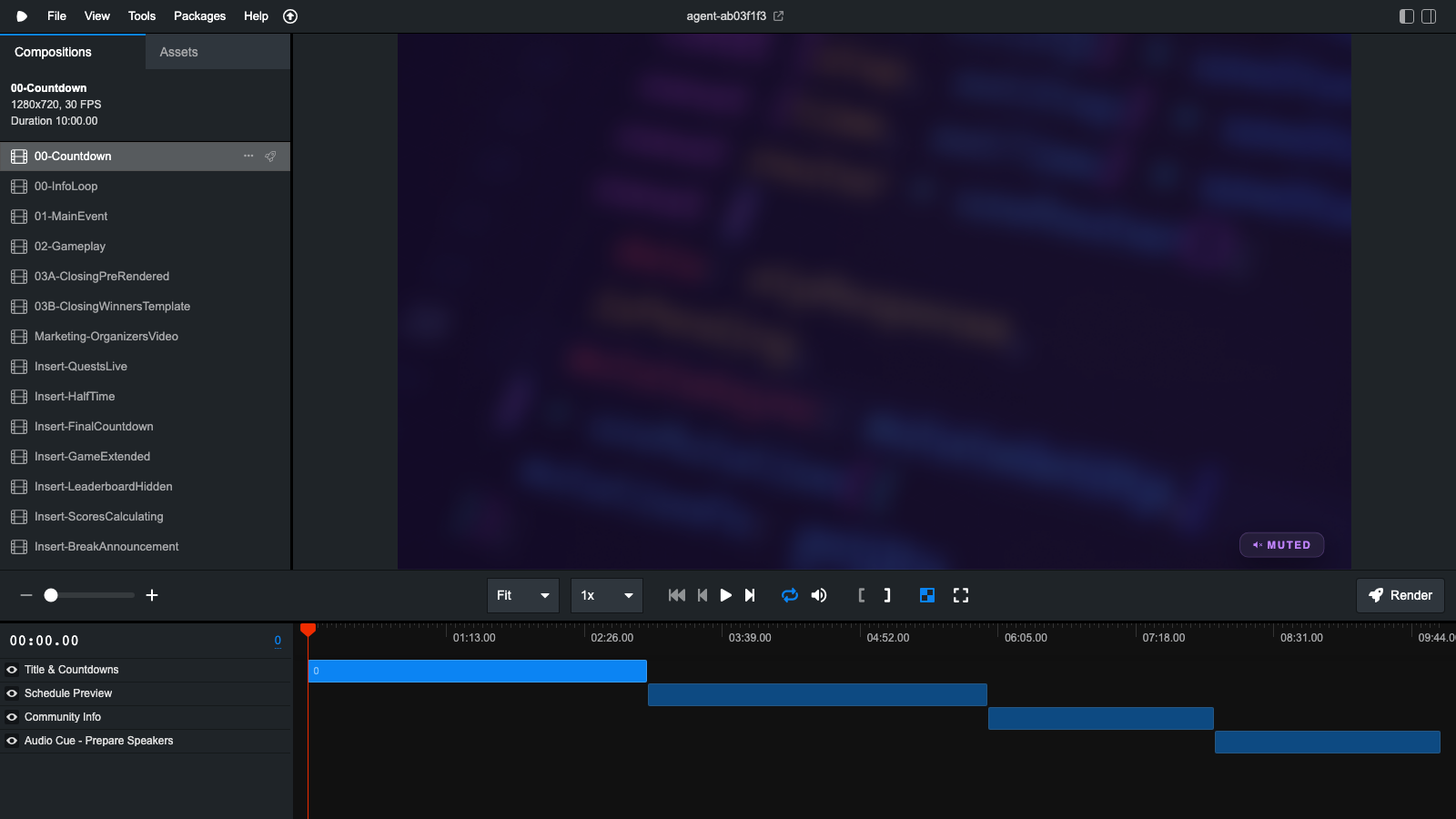
How a Remotion composition actually works
Every composition is a pure function of time. Here is what a simple one looks like:
import { useCurrentFrame, useVideoConfig, interpolate, spring } from "remotion";

export const TeamSpotlight: React.FC<Props> = ({ teamName, country, flag, fact }) => {
  const frame = useCurrentFrame();
  const { fps } = useVideoConfig();

  // Slide in from bottom over 20 frames
  const slideY = interpolate(frame, [0, 20], [80, 0], {
    extrapolateLeft: "clamp",
    extrapolateRight: "clamp",
  });

  // Fade out at the end (frames 800-900 of a 900-frame insert)
  const opacity = interpolate(frame, [800, 900], [1, 0], {
    extrapolateLeft: "clamp",
    extrapolateRight: "clamp",
  });

  // Physics-based scale bounce for the flag
  const flagScale = spring({ frame, fps, config: { stiffness: 120, damping: 14 } });

  return (
    <div style={{ transform: `translateY(${slideY}px)`, opacity }}>
      <div style={{ transform: `scale(${flagScale})` }}>{flag}</div>
      <h2>{teamName}</h2>
      <p>{country}</p>
      <p>{fact}</p>
    </div>
  );
};
interpolate(frame, [0, 20], [80, 0]) reads as: "from frame 0 to frame 20, map the value linearly from 80 to 0." That is the slide-in. At 30 fps, 20 frames is 0.67 seconds. The extrapolateLeft: "clamp" means the value stays at 80 before frame 0 and stays at 0 after frame 20 - it doesn't keep going. spring() gives a physically correct animation that overshoots slightly and settles - configurable via stiffness and damping.
Because each frame is deterministic - same frame number always produces the same output - Remotion can render frames in parallel and seek to any point instantly. There is no "play and record" step.
The Insert System: 29 Live Overlays
This is the part that makes a 2-hour muted gameplay stream watchable. The stream operator - in this case me, from Vienna - fires 30-second overlays at manually chosen moments based on what's happening on the leaderboard.
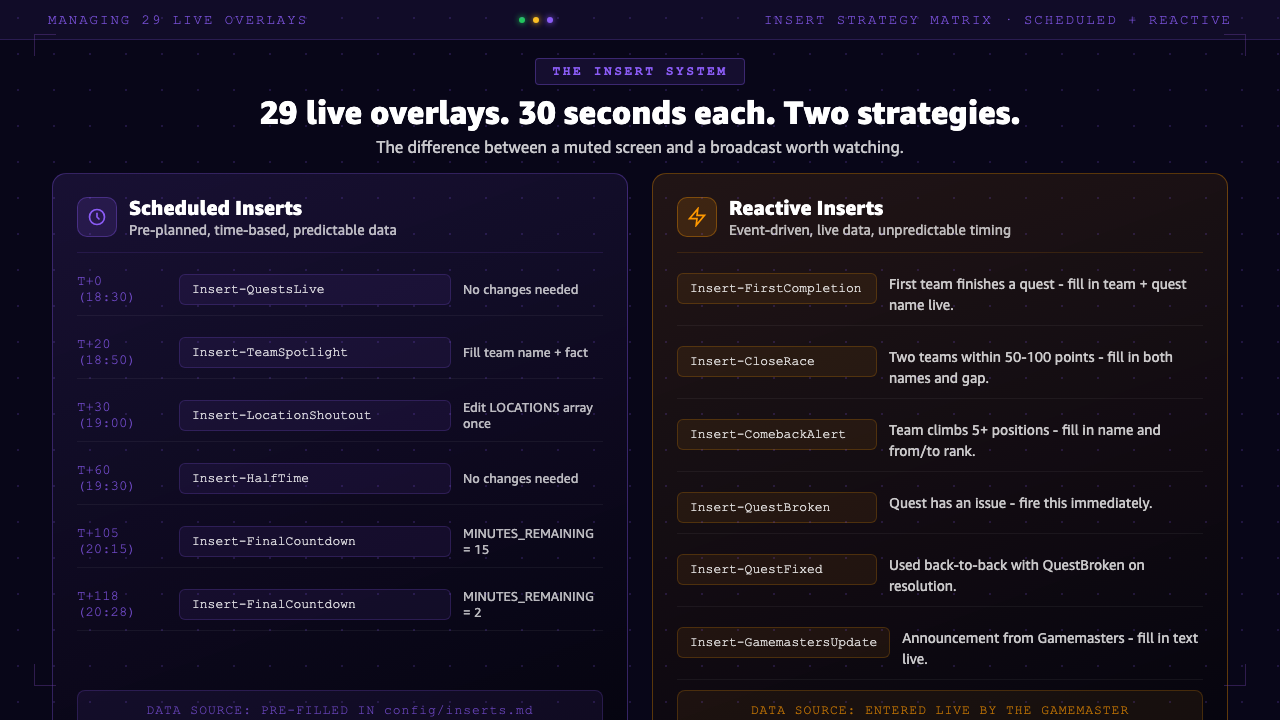
29 total inserts, split into two categories:
Scheduled inserts (prepared before the event)
These fire at predictable moments and don't depend on live data. You fill in the variables at the top of each .tsx file in Remotion Studio the day before.
| T+0 (18:30) | Insert-QuestsLive | Quests are live - no changes needed |
| T+20 (18:50) | Insert-TeamSpotlight | Spotlight: fill in team name, user group, country, one interesting fact |
| T+30 (19:00) | Insert-LocationShoutout | Waves through 15 cities - edit the LOCATIONS array once |
| T+60 (19:30) | Insert-HalfTime | One hour left - no changes needed |
| T+105 (20:15) | Insert-FinalCountdown | Set MINUTES_REMAINING = 15 |
| T+118 (20:28) | Insert-FinalCountdown | Set MINUTES_REMAINING = 2 |
Reactive inserts (fire when something happens)
These respond to live events and cannot be scheduled. You fill them in during the stream when you see something worth highlighting. Because Remotion Studio hot-reloads, saving the file and rendering to MP4 takes under a minute.
| Insert-FirstCompletion | First team finishes a quest - fill in team name + quest name live |
| Insert-CloseRace | Two teams within 50-100 points - fill in both names and the gap |
| Insert-ComebackAlert | Team climbs 5+ positions - fill in team name and from/to rank |
| Insert-QuestBroken / Insert-QuestFixed | Used back-to-back when a quest has an issue |
| Insert-GamemastersUpdate | Announcement from the Gamemasters - fill in text live |
Reactive inserts (quest breaks, first completions) can happen anytime. Return to the gameplay composition immediately after the 30 seconds - never stay on an insert. The full operator timing guide is in docs/playbook.md in the template repo.
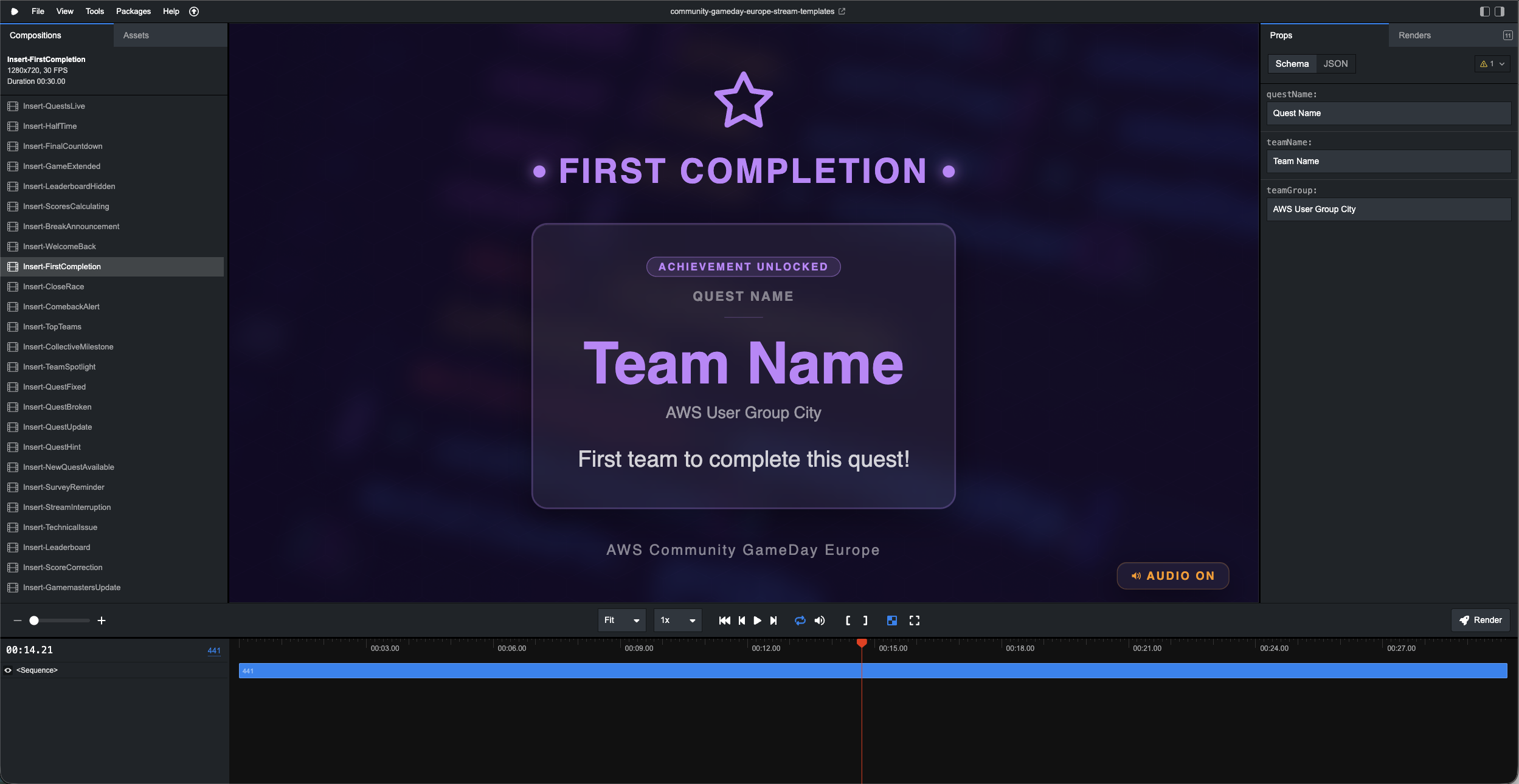
The insert schedule and all prep data for a specific edition lives in config/inserts.md in the event repo. This is a Markdown file - not code. It has the timing table, the spotlight prep with TBD fields to fill in, the city shoutout list, and quest hints to get from the Gamemasters in advance. You can also update the content live and directly in Remotion Studio with the Props on the right pane.
The GitHub Actions Workflow
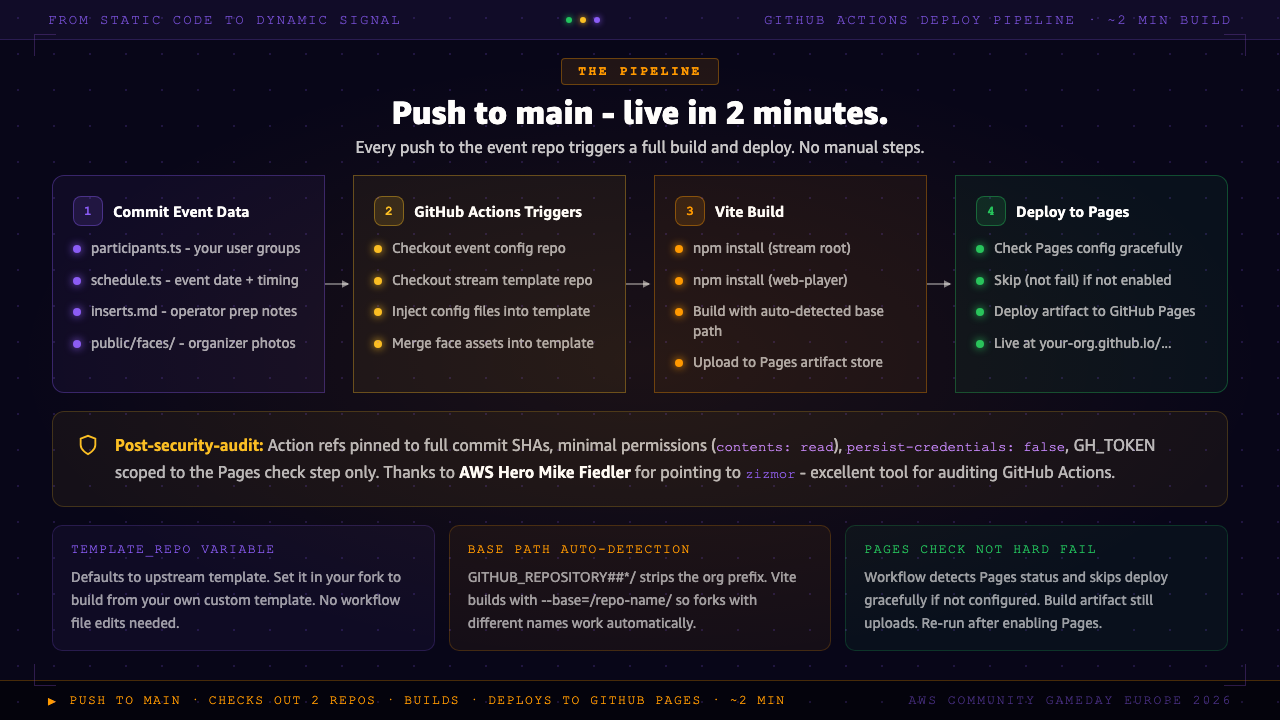
Every push to main in the event repo triggers the build-and-deploy workflow in .github/workflows/deploy.yml. Here is exactly what it does:
name: Deploy to GitHub Pages

on:
  push:
    branches: [main]

# Minimal permissions at workflow level - deploy job gets its own elevated scope
permissions:
  contents: read

concurrency:
  group: pages
  cancel-in-progress: true

jobs:
  build:
    runs-on: ubuntu-latest
    outputs:
      pages-ready: ${{ steps.check-pages.outputs.ready }}
    steps:
      # 1. Check out this config repo
      - name: Checkout event config
        uses: actions/checkout@de0fac2e4500dabe0009e67214ff5f5447ce83dd # v6
        with:
          path: countdown
          persist-credentials: false

      # 2. Check out the stream template repo
      #    To use your own fork: Settings -> Variables -> TEMPLATE_REPO
      - name: Checkout stream template
        uses: actions/checkout@de0fac2e4500dabe0009e67214ff5f5447ce83dd # v6
        with:
          repository: ${{ vars.TEMPLATE_REPO || 'linda-mhmd/community-gameday-europe-stream-templates' }}
          path: stream
          persist-credentials: false

      # 3. Inject event config into the template
      - name: Apply event config
        run: |
          cp countdown/config/schedule.ts    stream/web-player/src/schedule.ts
          cp countdown/config/participants.ts stream/config/participants.ts
          if [ -f countdown/config/event.ts ]; then
            cp countdown/config/event.ts stream/config/event.ts
          fi

      # 4. Merge event-specific assets
      - name: Merge assets
        run: |
          if [ -d countdown/public/faces ]; then
            cp -r countdown/public/faces/. stream/public/assets/faces/
          fi
          if [ -f countdown/public/support-process-h264.mp4 ]; then
            cp countdown/public/support-process-h264.mp4 stream/public/assets/support-process-h264.mp4
          fi

      # 5. Install and build the web player
      - name: Install stream root dependencies
        working-directory: stream
        run: npm install

      - name: Install web-player dependencies
        working-directory: stream/web-player
        run: npm install

      - name: Build
        working-directory: stream/web-player
        run: |
          REPO_NAME="${GITHUB_REPOSITORY##*/}"
          npm run build -- --base=/${REPO_NAME}/

      - uses: actions/upload-pages-artifact@7b1f4a764d45c48632c6b24a0339c27f5614fb0b # v4
        with:
          path: stream/web-player/dist

      # 6. Check whether GitHub Pages is configured - skip deploy (not fail) if not
      - name: Check GitHub Pages configuration
        id: check-pages
        env:
          GH_TOKEN: ${{ secrets.GITHUB_TOKEN }}
        run: |
          BUILD_TYPE=$(gh api repos/${{ github.repository }}/pages --jq '.build_type' 2>/dev/null || echo "none")
          if [ "$BUILD_TYPE" = "workflow" ]; then
            echo "ready=true" >> $GITHUB_OUTPUT
          else
            echo "ready=false" >> $GITHUB_OUTPUT
            echo "Pages not configured yet - go to Settings → Pages → GitHub Actions"
          fi

  deploy:
    needs: build
    if: needs.build.outputs.pages-ready == 'true'
    runs-on: ubuntu-latest
    permissions:
      pages: write
      id-token: write
    environment:
      name: github-pages
      url: ${{ steps.deployment.outputs.page_url }}
    steps:
      - id: deployment
        uses: actions/deploy-pages@d6db90164ac5ed86f2b6aed7e0febac5b3c0c03e # v4
A quick note: AWS Hero colleague Mike Fiedler reached out after an earlier version of this post and pointed me to zizmor - a tool that helps identify potential security issues. If you use GitHub Actions yourself, this is an excellent way to proactively scan your workflows for common GHA attack vectors. Thank you Mike!
Three things to notice:
vars.TEMPLATE_REPO - Defaults to the upstream template. To use your own fork, set this variable in your event repo's Actions settings. No workflow file edit needed.
Base path auto-detection. REPO_NAME="${GITHUB_REPOSITORY##*/}" uses bash parameter expansion to strip everything before the last slash from the full repository name (org/repo-name becomes repo-name). Vite then builds with --base=/repo-name/ so all asset paths are correct for GitHub Pages. Forks with a different repo name work automatically.
Pages check instead of hard fail. Rather than letting the deploy step fail when Pages is not configured, the workflow detects the situation and surfaces a clear message. The build artifact is still uploaded. Only the deploy step is skipped. This means you can set up Pages after your first push and just re-run the workflow - no second push needed.
Testing Beyond Europe: Americas and Asia-Pacific
To prove the template works for events beyond European GameDay, I created two test configurations under the aws-user-group-toolkit GitHub organization:
Americas Test (15 User Groups, 8 Countries)
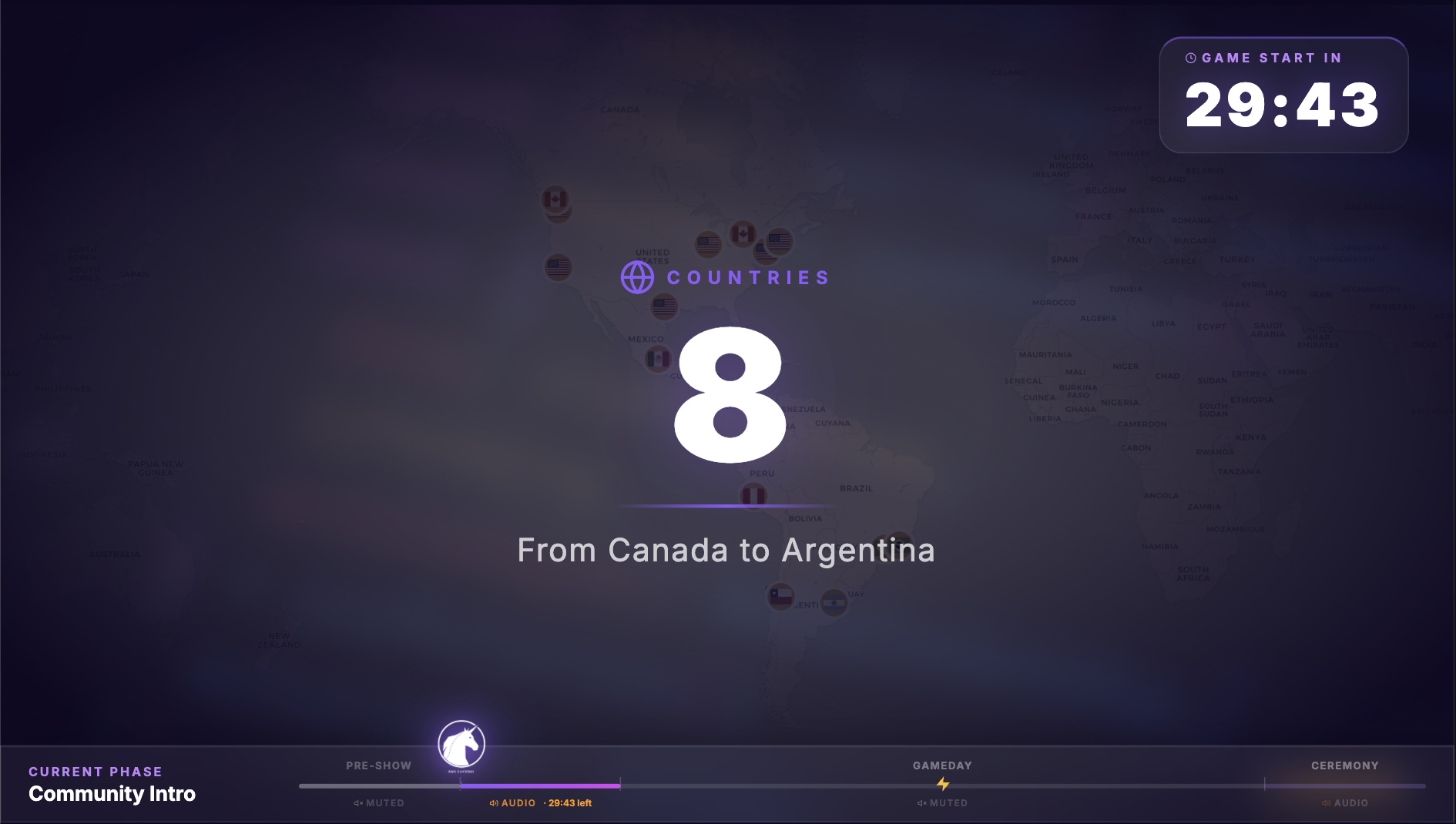
// config/participants.ts — Americas test
export const USER_GROUPS = [
  { flag: "🇺🇸", name: "AWS User Group New York",
    location: "New York, United States" },
  { flag: "🇺🇸", name: "AWS User Group Seattle",
    location: "Seattle, United States" },
  { flag: "🇨🇦", name: "AWS User Group Toronto",
    location: "Toronto, Canada" },
  { flag: "🇧🇷", name: "AWS User Group São Paulo",
    location: "São Paulo, Brazil" },
  { flag: "🇲🇽", name: "AWS User Group Mexico City",
    location: "Mexico City, Mexico" },
  { flag: "🇦🇷", name: "AWS User Group Buenos Aires",
    location: "Buenos Aires, Argentina" },
  // ... 9 more across Colombia, Chile, Peru
] as const satisfies UserGroup[];
Asia-Pacific Test (12 User Groups, 9 Countries)
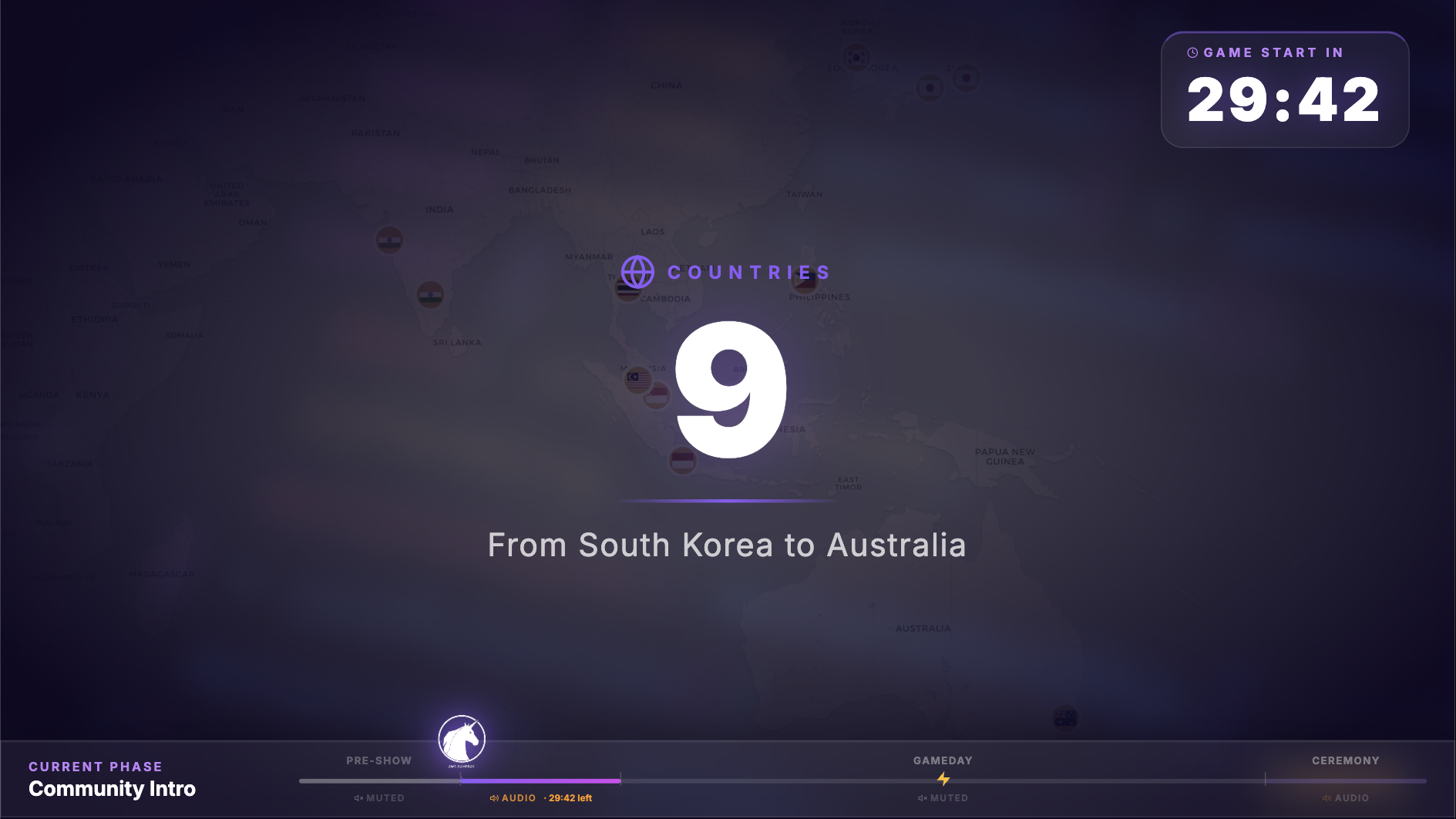
// config/participants.ts — Asia-Pacific test
export const USER_GROUPS = [
  { flag: "🇯🇵", name: "AWS User Group Tokyo",
    location: "Tokyo, Japan" },
  { flag: "🇸🇬", name: "AWS User Group Singapore",
    location: "Singapore" },
  { flag: "🇰🇷", name: "AWS User Group Seoul",
    location: "Seoul, South Korea" },
  { flag: "🇮🇳", name: "AWS User Group Mumbai",
    location: "Mumbai, India" },
  { flag: "🇦🇺", name: "AWS User Group Sydney",
    location: "Sydney, Australia" },
  { flag: "🇮🇩", name: "AWS User Group Jakarta",
    location: "Jakarta, Indonesia" },
  // ... 6 more across Malaysia, Thailand, Philippines
] as const satisfies UserGroup[];
Both deployments use the exact same template repo with zero code changes. Every stat, map, and flag animation updates automatically from the config. The InfoLoop shows the correct user groups. The closing ceremony shuffle pulls from the correct list. This validates the architectural decision: the template is truly region-agnostic.
The ugName field is used to look up the user group logo via the LOGO_MAP in config/logos.ts. If it doesn't match exactly, no logo shows. To see valid values: Object.keys(LOGO_MAP) in the console, or just open config/logos.ts and check the keys.
The workflow during the event: scores come in at 20:30, you fill in all 6 entries, save the file, Remotion Studio hot-reloads, and you render the composition locally with:
npx remotion render src/index.ts 03B-ClosingWinnersTemplate out/closing-winners.mp4The closing animation is ~9000 frames (5 minutes) with four phases: a shuffle of all user groups scrolling across the screen (0-1:00), a progressive bar chart reveal showing 6th place down to 1st (1:00-4:00), a final podium card grid (4:00-4:20), and a thank-you fade to black (4:20-5:00).
Fill in real scores only. The composition ships with placeholder data so it renders without errors. If you forget to update it and play the pre-render live, the audience sees white flags, "TEAM NAME," and zeros. There is a TEMPLATE.md in the root of the template repo with the exact field reference and a step-by-step checklist - use it as your closing ceremony runbook.
Local Preview in Remotion Studio
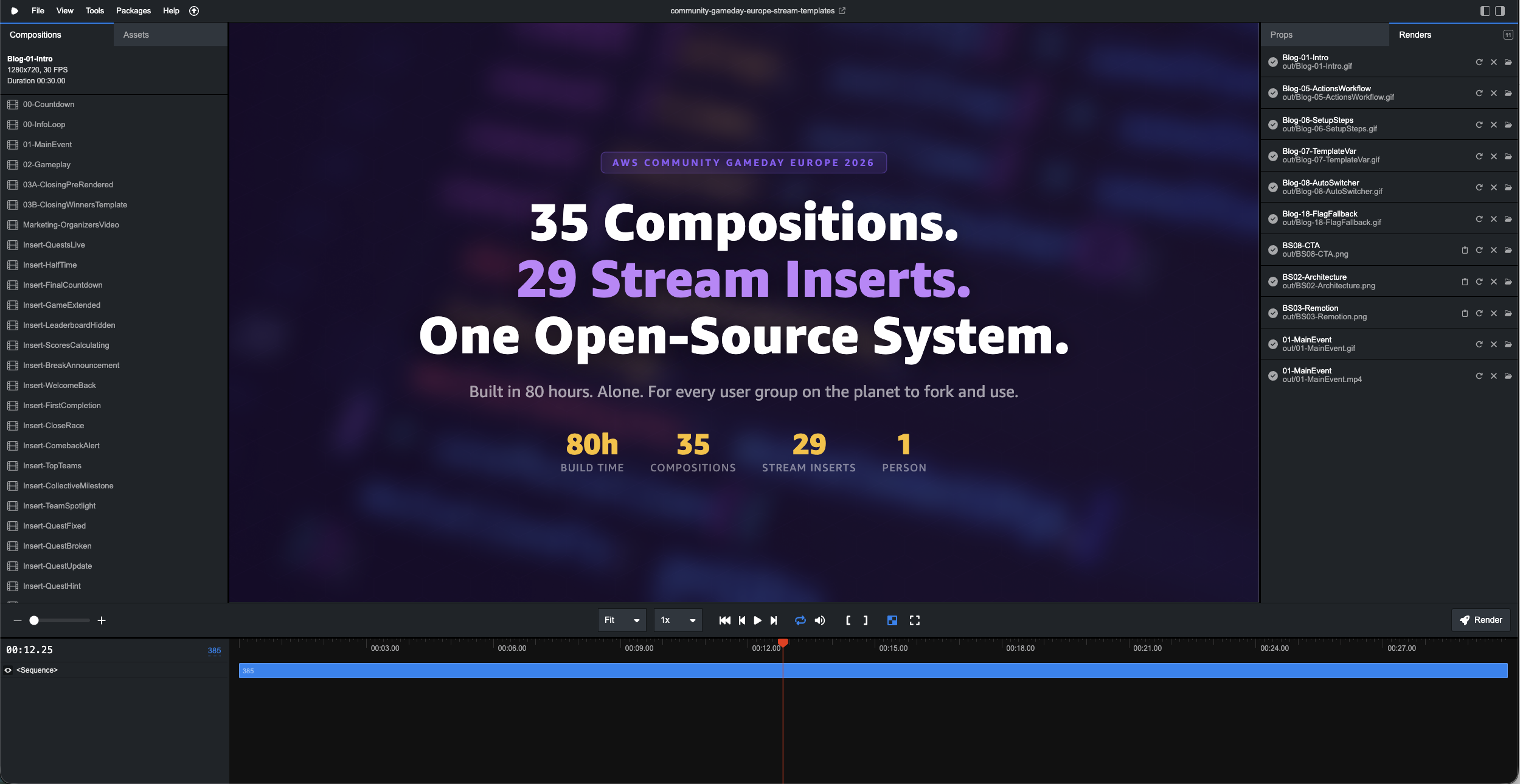
The event repo deploys the web player to GitHub Pages, but for development and insert prep, you work directly in the template repo using Remotion Studio:
git clone https://github.com/linda-mhmd/community-gameday-europe-stream-templates.git
cd community-gameday-europe-stream-templates
npm install
npm run studio
# Open http://localhost:3000
All 35 compositions appear in the sidebar. Click any of them, scrub the timeline, preview at full 1280x720. Hot reload works - edit a file, the Studio updates within a second.
To render a composition to MP4:
# From Remotion Studio UI: click Render → pick composition → Start render
# Or from CLI:
npx remotion render src/index.ts Insert-TeamSpotlight out/insert-spotlight.mp4
All rendered video files go into out/ which is gitignored. You load them into OBS or your streaming tool for playback.
Testing Across Timezones
The web player's auto-switching logic runs on the viewer's local clock converted to the host timezone. This means a bug in the timezone logic would show the wrong composition to viewers in different regions - the pre-show could still be running for someone in Istanbul while the main event is live for someone in Vienna.
The Americas and APAC dry runs tested exactly this. The test procedure: set the system clock to a time that corresponds to each schedule boundary, open the web player, verify the composition switches correctly. Schedule boundaries are at 17:30, 18:00, 18:30, and 20:30 CET. In UTC those are 16:30, 17:00, 17:30, and 19:30.
The web player uses Intl.DateTimeFormat("en-US", { timeZone: TIMEZONE, hour: "2-digit", minute: "2-digit", hour12: false }) to get the current time in CET regardless of the browser's local timezone. This is the same mechanism that makes "display time in Vienna" work correctly on a phone in New York. It does not depend on the user's system clock timezone setting.
What Was Worth It and What Wasn't
The two-repo architecture was worth every minute of refactoring after the event. When the event repo has 3 config files and a faces folder, it is immediately clear to anyone forking it what they need to change. There is no hunting through composition code looking for hardcoded strings.
The TEMPLATE_REPO variable pattern was a late addition but turned out to be important. Without it, anyone who wanted to modify the visual system would need to edit the workflow YAML in their fork. With it, the workflow is a sealed unit - you set one variable and it builds from wherever you point it.
The winners reveal being manual was the right call for the first edition. Automating it would require an API integration with the GameDay scoring system, handling partial scores, edge cases around ties, and failure modes during the most visible 5 minutes of the stream. The manual flow took 4 minutes to execute live and produced a clean result. The API automation is documented in LESSONS_LEARNED.md and TEMPLATE.md as a future contribution idea.
What I underestimated: the user group logos. Getting logos for 53 groups in consistent quality before the event took more coordination than any technical task. The solution that worked: pull logos directly from meetup.com. Every AWS user group has a Meetup page with a group photo - that URL is publicly accessible and stable, so config/logos.ts is just a map of group names to their Meetup CDN URLs. No file collection, no upload coordination. The Notion approach documented in CONTRIBUTING.md was an earlier workflow used for the DACH groups - Meetup URLs replaced it as the primary source. And for any group that has no logo at all, the system falls back automatically to the country flag emoji - so every group has something on screen, even if a Meetup URL isn't available.
What I Learned Preparing This Stream (Almost) Alone
I built the entire visuals system alone (or actually with Kiro & Claude Code). From the first Remotion composition to the GitHub Actions workflow to the insert library - all of it, start to finish, around 80 hours of work. That includes the initial build, all the compositions, and the refactoring pass I did on the insert system afterwards.
99% of the stream was prepared. The compositions, the operator schedule, the spotlight prep - all of it was ready before the event started. What I hadn't anticipated were the announcement inserts needed when things broke during the GameDay itself: quests that went down, environment issues mid-game, situations that needed a "we're aware, stand by" slide on screen while the Gamemasters worked on a fix. Those few reactive inserts I built during the stream while the gameplay overlay was running - not because the preparation was lacking, but because you can't prepare for a specific failure you don't know will happen.
The setup itself added its own constraints: I was running the stream through Zoom, which is built for calls, not broadcasting. And I was doing it from the Raiffeisen Informatik Office in Vienna (thank you for being sponsor of the day and one of our Top Hosts from the past 10 years) - the same building where the GameDay was happening in person, just in a different room. Not my usual location, not my usual tools. Werner Vogels says "everything fails, all the time" - and yes, during a first edition spanning 23 countries and 53 teams, things in the environment will fail. That's not a preparation problem. That's a scale problem, and you only learn what can go wrong by running it once.
All of that went back into the codebase. The reactive insert types in the library - quest broken, quest fixed, technical issue, gamemaster update - exist because real situations happened that needed them. The version that's open source now is the refactored version, built with that knowledge.
I'm genuinely happy with what this turned into. A system that any user group organizer anywhere in the world can fork and use to run a professional stream for their community. That was the goal. The 80 hours were worth it.
Why Open Source
Every AWS user group organizer who runs a live event faces the same problem: the technical infrastructure for a professional stream costs weeks of setup time that volunteer organizers don't have. Most events end up with a static slide deck and a Zoom link. That works, but it doesn't feel like the global community it actually represents.
The two repos are licensed under CC BY-NC-SA 4.0 - free for non-commercial community use, with attribution. A user group in any city can fork, update three config files, and have the same stream system in under an hour.
If you build something on top of this - new insert types, a scoring API integration, support for a different stream format - the CONTRIBUTING.md has the contribution guide. The biggest gap right now is the automated winners reveal. If you build it, it goes in the template and every future event gets it.
How to Use This for Your Own Event
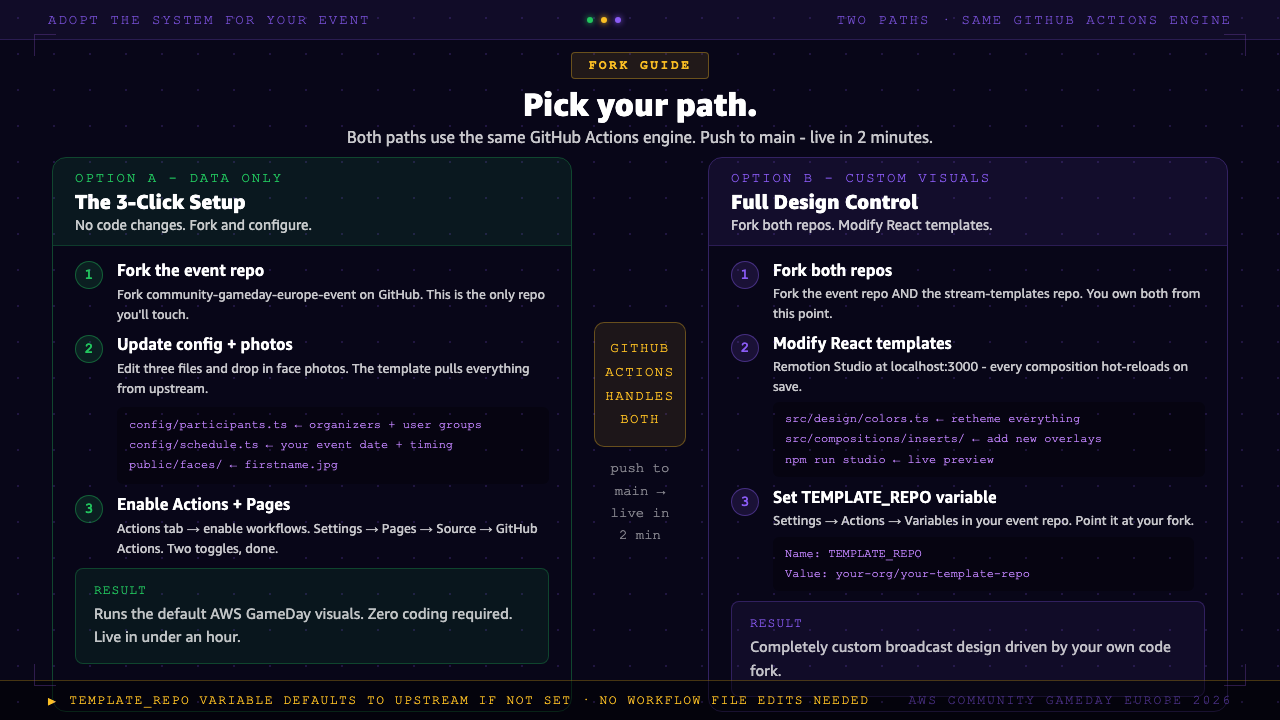
Option A: Use the Default Templates (quickest)
Fork only the event repo. Keep the template as-is.
# 1. Fork the event repo on GitHub, then clone it
git clone https://github.com/YOUR-ORG/community-gameday-europe-event.git
cd community-gameday-europe-event

# 2. Edit the config files
#    - config/participants.ts  → your organizers, user groups, logos
#    - config/schedule.ts      → your event date and segment timing

# 3. Add organizer photos (optional)
#    public/faces/firstname.jpg (all lowercase, JPEG)

# 4. Enable GitHub Actions (one-time — GitHub disables them on forks)
#    → Actions tab → "I understand my workflows, go ahead and enable them"

# 5. Enable GitHub Pages (one-time)
#    → Settings → Pages → Source → GitHub Actions

# 6. Push to main
git add -A && git commit -m "Configure for our event" && git push

# Live in ~2 minutes at:
# https://YOUR-ORG.github.io/community-gameday-europe-event/
Option B: Customize the Templates
Fork both repos. Modify compositions, design, add new inserts.
# 1. Fork BOTH repos on GitHub

# 2. Clone your template fork and make changes
git clone https://github.com/YOUR-ORG/community-gameday-europe-stream-templates.git
cd community-gameday-europe-stream-templates
npm install
npm run studio   # Opens Remotion Studio at http://localhost:3000

# 3. Change colors? Edit src/design/colors.ts
# 4. New insert? Copy src/compositions/inserts/_TEMPLATE.tsx
# 5. Different font? Edit src/design/typography.ts

# 6. Point your event repo at your template fork
#    In your event repo: Settings → Actions → Variables → New variable
#    Name:  TEMPLATE_REPO
#    Value: YOUR-ORG/community-gameday-europe-stream-templates

# 7. Push your event repo → builds from your custom template
Resources
| awsgameday.eu Official AWS Community GameDay Europe website |
community-gameday-europe-event Fork this to run your own event - config, photos, GitHub Actions deploy |
| community-gameday-europe-stream-templates Fork this to modify compositions, design, or add new inserts |
docs/playbook.md Stream operator guide - when to trigger each insert, what to fill in live |
| TEMPLATE.md Winners reveal runbook - fill in PODIUM_TEAMS before the closing ceremony |
CONTRIBUTING.md How to adapt for your own event, how to source logos, how to contribute back |
| docs/remotion.md Developer guide - Remotion Studio, rendering, all 35 compositions |
remotion.dev/docs Remotion documentation - useCurrentFrame, interpolate, spring, Player, rendering |
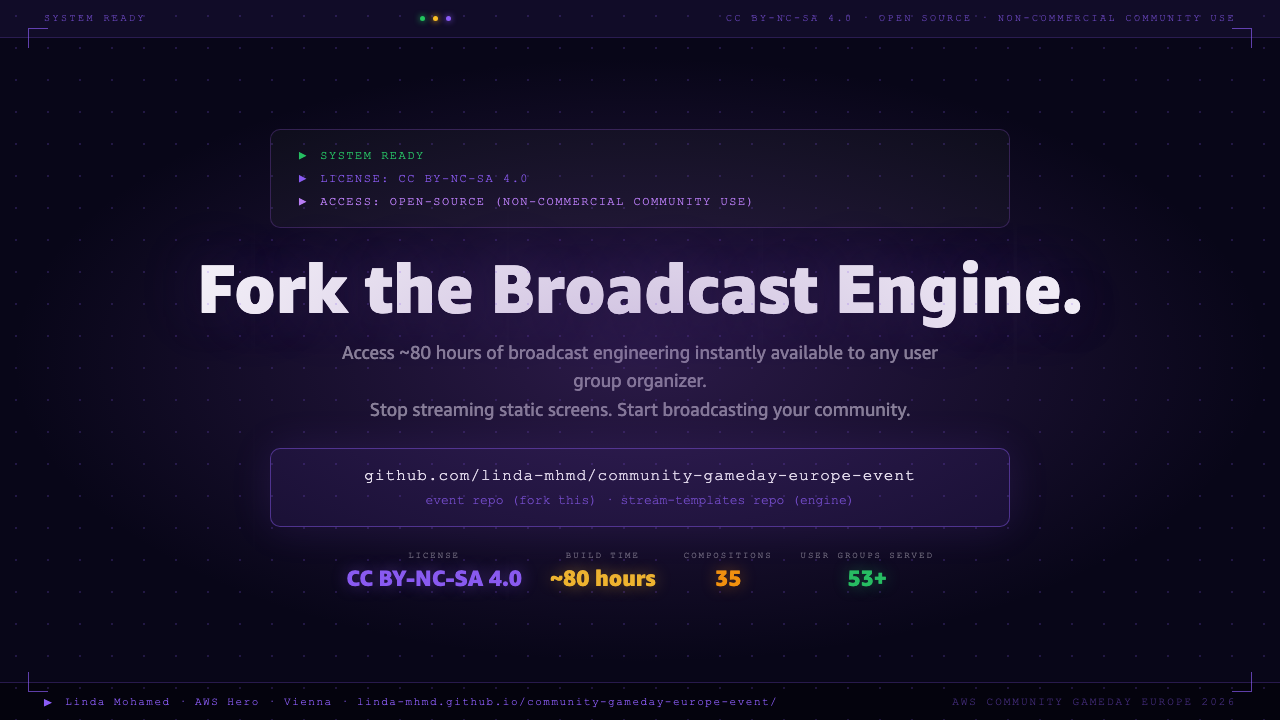
License: CC BY-NC-SA 4.0 - non-commercial community use, with attribution and share-alike.
Special thanks also to AWS Hero Thorsten Höger for his support in making this project open source and for generously sharing his insights with me.
Linda Mohamed is an AWS Hero and cloud architect based in Vienna. She co-organized AWS Community GameDay Europe and builds open-source tooling for community events.
Connect on LinkedIn · AWS Hero profile · GitHub
This video is hosted by YouTube. By clicking play, you accept that data may be transmitted to YouTube and that cookies may be set. See the Google Privacy Policy.